OCI Card Photo Maker
Drop your photo, line it up in the frame and download a JPEG at 600 × 600 px, under 200 KB. The settings below are already filled in for the OCI Card Photo.
OCI Card Photo requirements
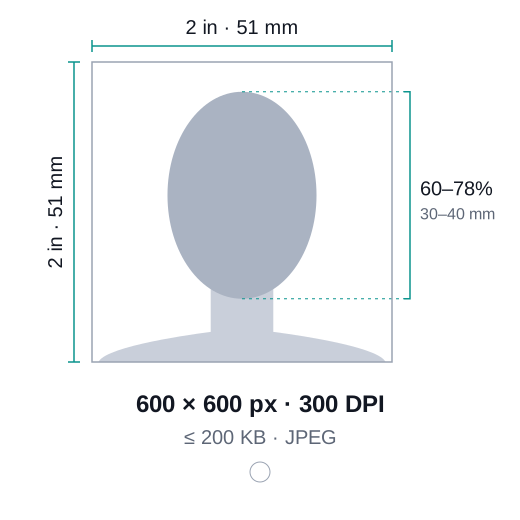
| Size | 600 × 600 px, under 200 KB |
|---|---|
| Pixels (our output) | 600 × 600 px at 300 DPI |
| File size | under 200 KB |
| Format | JPEG |
| Background | White |
| Head height | 60%–78% of photo height |
- Square photo between 200 × 200 and 900 × 900 pixels
- JPEG file, 200 KB or smaller
- Plain white background, face about 80% of the frame
- Printed copies are 51 × 51 mm (2 × 2 in)
Checked against official guidance in October 2026. Requirements change from time to time. Check the latest rules from OCI Services.
How to take your OCI Card Photo at home
- Stand in front of a plain white or very light background with even light and no shadows.
- Face the camera straight on with your eyes open and your face filling most of the frame — around 70–80% of the photo.
- Drop the photo above to get a square JPEG between 200 × 200 and 900 × 900 pixels, 200 KB or smaller.
- Prepare your signature too: sign in black or blue ink on white paper and save it as an image with a 1:3 height-to-width ratio (at least 200 × 67 pixels).
Common reasons your OCI Card Photo is rejected
- Photo not square, or outside 200–900 pixels per side
- File larger than 200 KB
- Face too small in the frame, or shadows on the face or background
- Signature image in the wrong ratio, or signed outside the box
Uploading your OCI photo and signature
Upload the photo and the signature image in the online OCI application. If the portal reports a format problem, check the pixel size, ratio and file size first.
Children who cannot sign put a left thumb impression in the signature box instead; parents cannot sign for them. Your embassy or VFS centre may also ask for printed 51 × 51 mm (2 × 2 inch) photos.
Frequently asked questions
What size is a OCI Card Photo?
600 × 600 px, under 200 KB. Picwright exports 600 × 600 pixels at 300 DPI, under 200 KB, as a JPEG.
What background colour is required?
A plain white background. If yours is not, Picwright can replace it with AI right in your browser.
Can I print it?
Yes. Download the 4×6 inch print sheet, print it as a normal 4×6 photo and cut along the guides. Each copy prints at exactly 50.8 × 50.8 mm.
Is my photo uploaded anywhere?
No. Cropping, background removal and compression all run on your device. Nothing is uploaded or stored.
Are these the latest official requirements?
They are taken from the official guidance of OCI Services, but rules change. Always check the current notice or official page before you submit.
More free photo tools
 Passport photo maker2×2 in, 35×45 mm and visa sizes with the right background
 Compress to KBShrink a photo to 20 KB, 50 KB, 100 KB or any size
 Resize to 20 KBUnder 20 KB for exam and job formsResize to 50 KBUnder 50 KB for application photosResize to 100 KBUnder 100 KB with sharp detailResize to 200 KBUnder 200 KB for documents and visas
 Resize imageExact pixels, cm, mm or inches
 Change backgroundWhite, blue, red or any colour with AI
 Change DPISet 300 DPI or any value without resampling
 Convert to JPGPNG, WebP to JPG — or the other way round